You can use the automated CSound Orchestra in Tune Smithy to convert a midi file to an audio file directly, or play the CSound instruments in real time. What makes this special is that no coding or programming is required, all you need to so is to select the CSound instrument for each Midi part from a drop list.
If you are ready to download the program right away, go to Where to find this feature. Read on to find out more about what you can do.
You can record your playing to CSound, or play on several CSound instruments at once.
Here is a recording of a couple of the Tune Smithy fractal tunes, played on CSound five fold resonated noise, a sound somewhere between the sound of the wind and a whistle. The tuning is one used by Pygmies, from the SCALA archive.
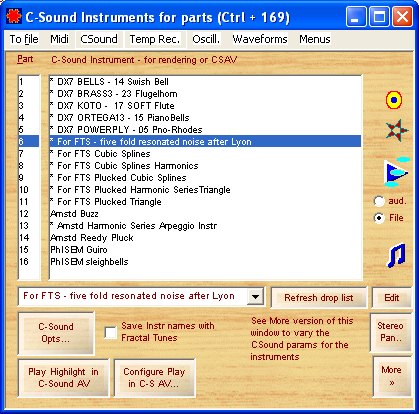
Here is where you select the instruments for each part
To change the instrument for any of the sixteen parts, just highlight the part and select any CSound instrument you like from the drop list at the bottom. You can then use these sixteen parts for the sixteen midi channels of a midi file or for the midi channels routed to FTS from any music notation software using a virtual midi cable.
In another window you can set the Stereo Pan position for each part.
CSound is free open source software for musical sound synthesis, developed as a collaborative project by many experts in the field since 1985 when it was first created by Barry Vercoe. Many interesting and unusual sounds have been created for it.
CSound is a music synthesis system of great versatility. Unfortunately for many interested in it, normally it requires some programming skills to use. But there is no need to do any programming to use the example CSound instruments included in FTS.
One of the reasons why CSound has such a reputation as a techy option is that normally you need to edit the code of the orchestra whenever you change the selection of instruments.
Tune Smithy does this automatically. There is no need to look at a single line of code to use the CSound instruments that come with the program.
First you need to set up the CSound instruments for the sixteen parts, coresponding to the sixteen midi channels in a midi file, as we've seen above in the section Play on several CSound instruments at once.
Rendering a midi recording or your playing to CSound
Then you can use your orchestra to render any midi file directly to an audio file using CSound, or record your playing to CSound. You can also play from your music keyboard, or using mouse or PC keyboard to play the notes, and record to CSound as you go.
When you record to CSound like that the idea is that you play the notes on an instrument on your soundcard just so that you can hear what you are playing - but record to CSound. You can then render your recording and hear it played on any CSound instruments, and try it out with different instruments to see which you like.
Playing your automated CSound Orchestra in real time
Once you have CSoundAV installed, you can also play your CSound orchestra in real time via midi, from your music keyboard, or play it in real time from a score in your notation software in any microtonal tuning. Tune Smithy will make a csd file for your orchestra which lets the instruments respond to midi pitch bends in real time - which you can use to start up CSoundAV to use it in this way.
Use any of the example CSound instruments or add new instruments
A selection of example CSound instruments is included. Veteran CSound coders can easily convert their own or other instruments so that they can be added to the list.
Some work is needed to port new CSound instruments so that they can be used with FTS. They need to be converted to the newer unified CSD format if not already in it. Then you need to add an extra section to specify what parameters the instrument expects. You will also need to give preset values for all the parameters, and specify which of the parameters you want to show to the user to let them change them in the user interface in FTS. You may also need to add an extra section for any score initialisation statements. For most instruments, that's all you need to do.
Record your playing directly to CSound as you play.
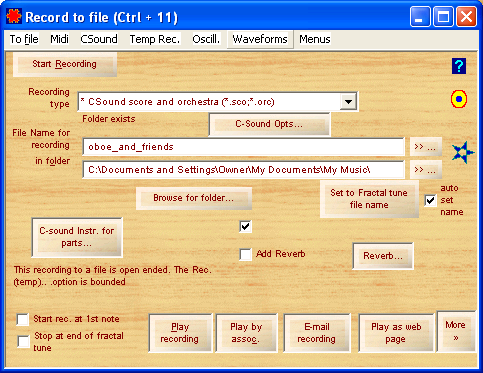
If you haven't installed CSound then you have to do that first of course. This is very easy with the latest CSound installers. Then select CSound as the recording type in the Record to File window, and you are all set to go.
When the recording is finished then the CSound file gets rendered automatically into an audio file using your selection of CSound instruments.
The DX7 instruments in the list are auto converted from DX7 patches - the Yamaha DX7 (1983-6) was the first commercially successful synthesizer, and is regarded with affection by musicians and composers because of the wide range of interesting sounds that have been made for it. Jeff Harrington has written a program to auto convert DX7 patches to CSound instruments, and I have updated it to make the output compatible with the FTS orchestra builder.
There are large freely available libraries of DX7 patches which you can convert to CSound in this way and then immediately use them in your CSound recordings in FTS.
You can also play the CSound instruments in real time using the option "Play highlight in C-SoundAV" - if you have CSound AV installed.
You can auto select which midi device to use to relay to CSoundAV, and which audio device CSoundAV should use to play the sounds, and you can also use pitch polyphony with your CSound instruments (this lets you have several pitch bends at once in the same midi channel - a rarely used alternative interpretation of the Midi Spec for pitch bends which is easy to implement with CSound)
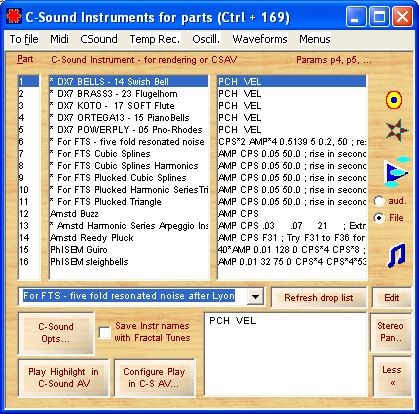
In the More version of the CSound Instruments for Parts window you can tweak the individual instruments using the parameters assigned to it by the CSound developer:
You will notice that each instrument has a set of parameters in the Params list opposite it. When you select a new CSound instrument then the params for that part get automatically updated to suitable numbers for your instrument.
As you learn more about CSound you may want to experiment with varying the parameters to tweak the individual instruments. If it doesn't work out, just reselect the original instrument from the drop list, to set the parameters back to the preset values guaranteed to work for that instrument.
Advanced techy users can also edit the CSound code for individual instruments using the Edit button in the same window. For instance you could edit the source code for the five fold resonated noise to make a six fold resonated noise instrument, or four fold resonated noise etc, and compare them (that's an easy change to make to the code).
Even when you work with the source code in this way, you never need to edit the code for a complete orchestra. Instead you work with individual instruments. FTS then builds your instruments into the orchestra.
Techy users who want to can edit the code for any of the example instruments, and use them as a basis to make new CSound instruments.
You can also convert your existing CSound instruments to make them compatible with the FTS orchestra builder - this is a fairly easy task, involving adding an extra section to the unified CSound file for your instrument describing the parameters your instrument requires.
You only need to do this once. After you have converted your CSound instrument by adding this extra information then it is available for use by the orchestra builder just like the other instruments. If you have any questions about how to convert your instrument, just contact support@robertinventor.com for help.
Often CSound instruments consist of one "master" instrument that receives the score instructions, and other instruments that don't play notes directly, but are needed by the main instrument in order to function. That's also no problem, just include all the instruments you need in the one file and make sure that all the numbers of the instruments in your file are less than 100 (they normally are anyway).
FTS will automatically group the instruments together appropriately when it combines all your individual instrument "orchestras" together to make the complete Csound orchestra. It does that by renumbering the instruments and assigning unique numbers to them all, so that there is no confusion. For instance the instrument assigned to channel 1 will be given the number 100, and any extra instruments it requires will be given numbers in the range 100 to 200. The instrument assigned to channel 2 is given the number 200, with its extra instruments in range 200 to 300, and so on.
To make a new instrument from scratch, enter the desired name into the CSound Instruments for Parts window (Ctrl + 169) and click Edit to make an example csd file with further instructions.
Here is the example csd file you get, with the instructions as comments: example_csound_instrument.csd. See it for more details about how to do the conversion.
FTS automatically makes the CSound score for your notes as you play, using your chosen parameters for each instrument. It also makes a complete CSound orchestra for you consisting of all the instruments you need for the recording, in the desired stereo pan position for each one.
Then it calls the CSound renderer to render your score to an audio file - or it makes a suitable csd file to use to play your orchestra in CSoundAV in real time.
Why is this so techy in CSound?
What makes this techy in CSound is that often different CSound instruments may use the same table numbers and instrument numbers. So to avoid clashes, you need to edit the code for the instruments in order to make them all compatible with each other. This requires some programming capabilities on the part of the user, and can be quite an intricate and techy thing to do especially if the orchestra is large.
Then the score too has to be compatible with the instrument - the tables in the score all have to be correctly numbered to match the table numbers expected by the instruments for instance. Then the score instructions for individual notes have many parameters and the details depend on the instrument, so the instruction to switch a note on or off must be custom built for each instrument.
Different instruments may have different numbers of parameters, the order can vary, even sometimes with more than one pitch parameter. The pitch parameters particularly can come in many different forms, e.g. frequency, and various microtonal notations, and the way it is interpreted depends on the instrument. The amplitude parameter also can come in different forms.
There can also be other parameters that pass things such as table numbers and other things that affect the instrument. Sometimes instruments may use global memory as well, adding to the complexity of integrating them together to make an orchestra.
How does FTS deal with these issues?
FTS automatically renumbers any tables, score initialization statements, and instrument numbers in the orchestra to make all the instruments compatible with each other. The entire orchestra is rewritten with the new numbers - individual CSound instructions are identified and rewritten by using a template which tells FTS which arguments refer to table numbers (you can update this template to add new CSound instructions).
Any instructions in the orchestra that use global memory are rewritten so that each instrument uses a different part of the memory so that no clashes occur between the different instruments.
Then FTS automatically constructs the orchestra and score needed for your music. The score tables are automatically renumbered to match the new orchestra. The score instructions are automatically made to be compatible with the instrument with all the correct table numbers, and with the amplitude and pitch parameter(s) in the correct format.
You can use the automated CSound orchestra builder with many of the Tasks. If you want to convert midi files to CSound, then a suitable task to use is the retuning midi player -
Look in the Tune Smithy Tasks window for:
If you wish to record to CSound as you play from a music keyboard you would use the Music Keyboard retuning task, or to record a fractal tune to CSound you use e.g. the Fractal Composer task and so on.
To use this feature, choose CSound as the recording type in the Record to File window (Ctrl + 11).
Select the instruments using the CSound Instruments for Parts window (Ctrl + 169)
Freeware / Shareware status: This feature is shareware. You need the Midi Save unlock key. You can save up to one minute for free, or do up to five recordings per session.
To continue reading about Tune Smithy, go on to the Wave Shape Player
To download the program and take it for a Test drive (start the test drive at any time):